
Online booking should remove a phone call, not create a cleanup job.
That sounds obvious. It is also where many booking forms go wrong. A customer picks a time from a generic calendar. The office later learns that the technician is already busy, the job type needs a different person, the address is outside the service area or the customer never saw the visit fee. The form made the first five minutes easier and the next morning harder.
A useful booking form does something narrower. It lets a customer choose from times the business can actually serve. It collects enough detail to prepare the visit. Then it puts one readable job into the software the office already uses.
Here is what that takes.
Start with the calendar the office already trusts
The form should not keep a second schedule that the office has to remember. It should read the same calendar the office and technicians use now.
That does not mean showing every empty hour. A real opening depends on more than blank space. It depends on the technician, the kind of work, the service window, travel and the rules the owner has chosen. A plumber who handles water heaters may not handle excavation. A three-hour arrival window may need a buffer before the next visit. A holiday can close a day that looks empty on the calendar.
The customer does not need to see those rules. They need a short list of honest choices.
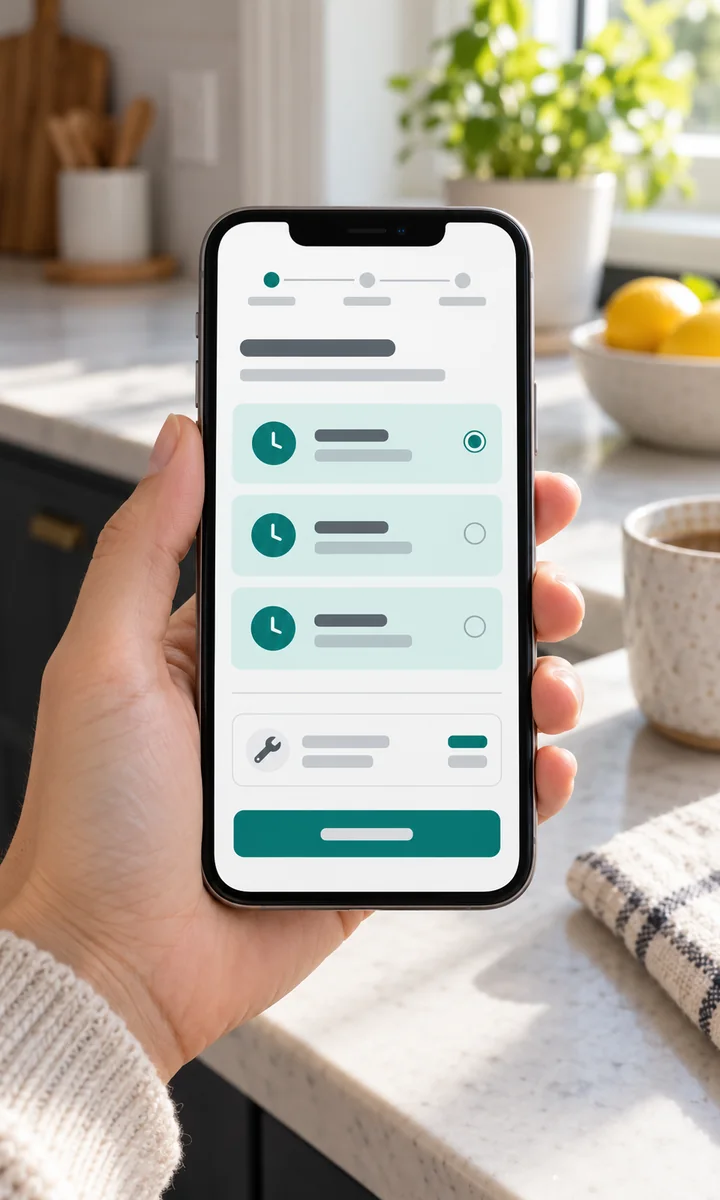
Use arrival windows instead of a promise to arrive at one exact minute. “Tuesday, 9 AM–12 PM” is clear. It gives the technician room for traffic and the job before it. It also tells the customer what they are agreeing to.
Check the time again when the customer sends the booking. A slot can be open when the page loads and taken thirty seconds later. If that happens, say so plainly and ask the customer to choose again. Do not create two jobs and ask the office to sort them out.
Match the time to the job and the technician
The customer should first choose what they need. Keep the choices in trade language: “Water heater,” “Clogged drain,” “Leak,” or “Something else.” Behind each choice, the owner maps the work to the right job type and eligible technicians.
This makes the calendar smaller and more useful. The form can avoid offering a drain-cleaning opening when only the water-heater technician is free. It can also send “Something else” to the office as a request when the work is not safe to book automatically.
That last part matters. Online booking does not need to book everything. A good form has a safe path for work that needs a person to review it.
Put the visit fee before the final button
If there is a service or dispatch fee, show it before the customer books. Use the same amount the office puts on the job. Use one short sentence.
For Dunvarrow Plumbing Co., the line might be:
There is a $79 service fee for non-members.
Then repeat it on the confirmation screen. If membership cannot be checked online, say that the office will verify it. The form should not promise a waiver it cannot prove.
The fee should live in one account setting, not in a different box on every form. When it changes, the owner changes it once. The booking copy and the job line change together.
Ask for the details that change the visit
Short steps work well because each screen asks one kind of question:
- What do you need?
- Who and where are you?
- Do you want to add photos?
- Which open time works?
- Is everything correct?
Keep the address fields friendly to a phone. Show the unit field without hiding it behind another tap. Use the right keyboard for phone, email and ZIP code. Keep Back available so the customer can correct an answer without losing the rest.
Photos are useful when they help the office understand the work. Ask for the equipment, the damaged area or the space around it. Do not require a photo for ordinary service. A customer standing beside a leaking pipe should still be able to book without becoming a photographer.
If someone starts the form and leaves, an unfinished-request feature can save what they already gave, but only after they have provided contact details and agreed to be contacted about that request. Activity should reset the timer. A customer who is still moving through the form is not unfinished.
Make the handoff readable
The booking is not done when the form says “submitted.” It is done when the office can use it.
The booked job should land in the CRM with the chosen service, customer, address, technician, window, fee line and the source that brought the customer. The private note should read like a note, not like computer code. If the customer added photos, the office and technician need a clear place to find them.
The office email should answer one question first: what do we need to do? A proved booking may need no action. A request may need a callback. A possible duplicate may need the office to compare customer records. Put that at the top. Put the customer and request details below it.

Keep the lead source with the booking. If a tagged booking link came from a listing or ad, the job should carry that channel. “FonsHive” is the tool that moved the booking. It is not the reason the customer found the business.
A worked example: Dunvarrow Plumbing Co.
Dunvarrow has two plumbers. Maya handles water heaters and general service. Luis handles drains and general service. The office offers three-hour windows, adds a short buffer and charges a $79 service fee for non-members.
A customer opens a tagged booking link and chooses “Water heater.” The form checks the office calendar and shows three windows where Maya is available. The customer chooses Wednesday, 1–4 PM, adds two photos and sends the booking.
Before creating anything, the system checks the window again. It is still open. One job is created for Maya with the correct arrival window, service type, fee line and source. The photos are available to the office and, after the booked job is confirmed, sent for an attachment attempt where the connection allows it; the signed-in link remains as a fallback. The customer sees “You're booked,” the window, a phone number for changes and calendar buttons. The office gets one email that says no action is needed.
Now change one fact. Another customer takes that Wednesday window just before the send. The second customer is not told they are booked. They see that the time was just taken and choose another opening. The office does not get two jobs for one window.
That is the difference between a form with a calendar on it and a booking path the office can trust.
Test it before you publish it
Use an unpublished copy first. Make a normal booking, a request that should not become a job, a booking with photos and a time-taken case. Check the customer page, the CRM job, the lead source, the office email and the technician's calendar.
Keep the real form off until those checks pass. When it goes live, watch the first day closely. The safest switch is one you can turn off without losing the form or its history.
You can see a fictional end-to-end example in the FonsHive demo. If you are comparing the full service with a stand-alone form tool, the current plans and included setup are on the pricing page. For the source field that should travel with every booking, read how to track which ads bring in jobs.
The goal is simple: show only times you can keep, then hand the office a job it can use.
---