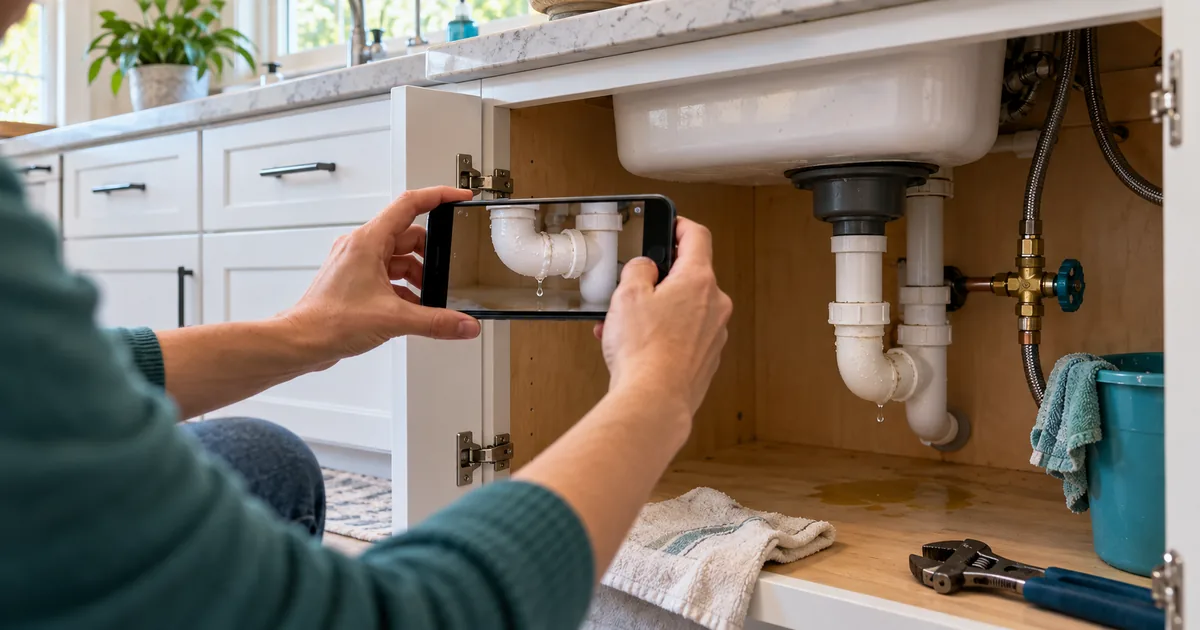
“Can you send a photo?” is one of the most useful questions an office can ask before a service visit.
It can also become a mess. The photo lands in one person's text messages. Nobody attaches it to the request. The technician never sees it. Or the customer sends a close-up that shows a wet fitting but not the shutoff three feet away.
The answer is not to collect more pictures. It is to ask for the few pictures that change the first visit, keep them with the request and set clear privacy limits.
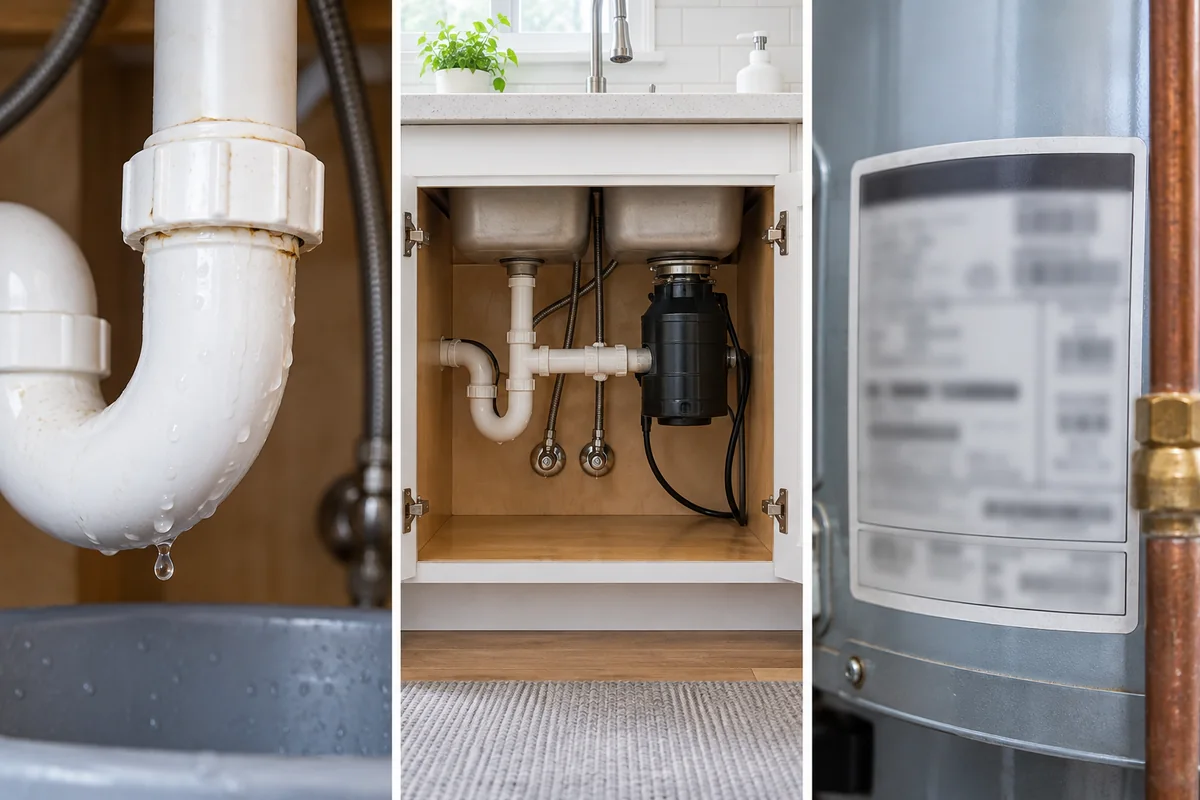
Ask for three views, not ten random photos
For most home-service work, three views are enough:
- The problem. The leak, damaged part, error code or place that needs work.
- The space around it. Enough of the room, wall, cabinet or equipment area to see access and clearance.
- The label. A model plate, serial label, electrical panel label or shutoff, when it matters.
Give the customer a short prompt beside the upload. For Dunvarrow Plumbing Co.:
Add a photo of the problem, one wider photo of the area and the equipment label if you can. Please leave out people, mail and paperwork.
“If you can” matters. A photo should help the request, not block it. Someone with an older phone, a slow connection or water on the floor still needs to reach the office.
Cap the number of photos. FonsHive's live forms accept up to three. Each stored image is reduced and stripped of ordinary image metadata before it is kept. The customer sees which photos were accepted and can continue without them if an upload fails.
Show enough space to plan access
A close-up answers “what is leaking?” A wider photo answers different questions:
- Is the shutoff reachable?
- Is the water heater in a tight closet?
- Is the panel blocked?
- Is the pipe behind a finished wall?
- Will the technician need a ladder, drop cloth or second person?
Those are planning questions, not remote diagnosis. A photo can suggest what to bring. It cannot prove what is behind a wall or whether equipment is safe. Keep that limit in the wording. “This helps us prepare” is honest. “We can diagnose it from your photo” is not.
Keep photos with the request
The office should not have to search a shared phone, inbox and group text.
When a photo comes through a booking or request form, it should stay attached to that FonsHive request. The office email and CRM note should carry a signed-in link, not the image bytes. For a proved booked job, FonsHive also makes one best-effort copy of each photo to the job's Attachments area. The signed-in link remains as the fallback.
Requests and unfinished requests do not have a job to attach to, so they keep the link only. That is a useful difference to explain in the help text. “Photos go to the CRM” is too broad when a request may be only a lead.
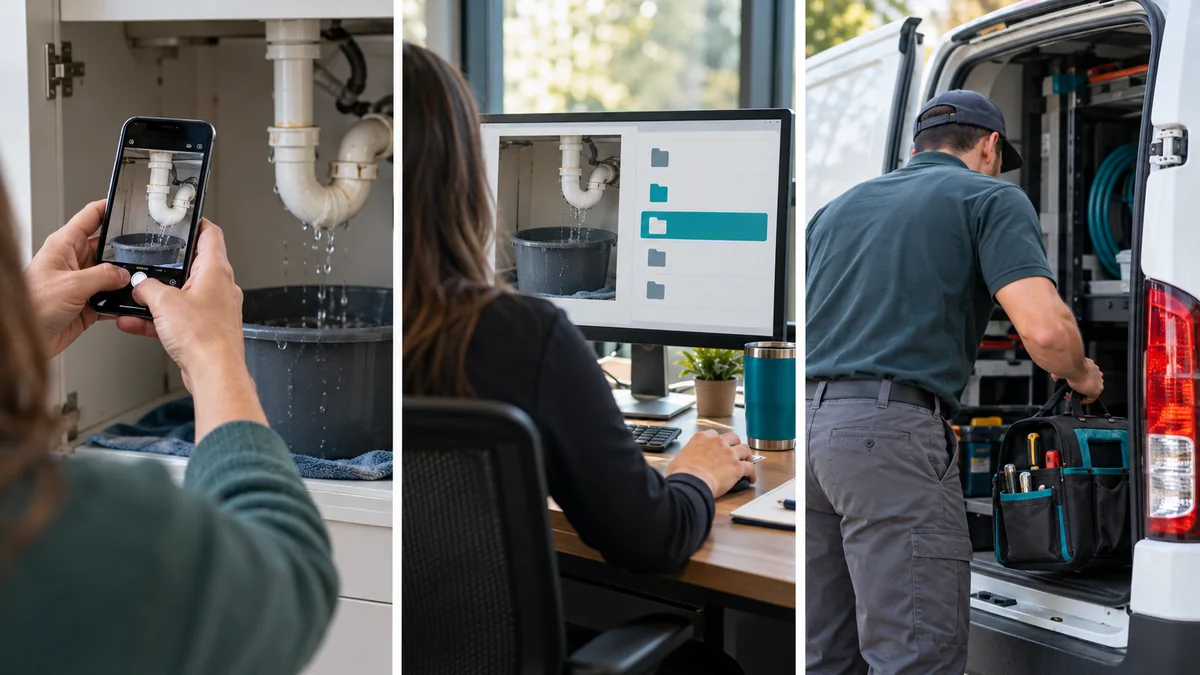
Do not keep retrying an uncertain attachment upload. If the provider may have accepted the file but the response was lost, a blind retry can make a duplicate. Show the office that it needs a check and keep the original link available.
Give the office a routine
A photo feature saves time only when the office knows what to do with it.
Use a three-step routine:
First, classify the request. Is this a normal service visit, a request that needs a call, or a possible hazard that needs the office right away?
Second, check preparation. Does the photo change the technician, job type, likely materials or access plan? If not, leave the booking alone.
Third, write one useful note. “Photo shows corrosion at the water-heater shutoff; unit is in a narrow utility closet.” That is useful. “See photo” is not.
The technician should see the request without seeing extra personal information. A photo of a pipe does not need the customer's email, and a job note does not need the customer's phone or gate code repeated in free text.
A worked example: Dunvarrow Plumbing Co.
A customer reports water beneath a kitchen sink. They add one close photo of a dripping slip joint, one wider photo of the cabinet and one photo of the disposal label.
The office can see that the shutoff is reachable and that the cabinet is crowded. It keeps the normal service appointment, adds a short preparation note and leaves diagnosis to the plumber.
The plumber opens the job before leaving the shop. In this example the attachments succeeded, and the signed-in FonsHive link remains in the note if a copy fails or needs a check. The plumber brings the common drain parts and a small tray. At the home, the plumber still inspects the assembly before deciding what to replace.
Now consider the wrong version. The customer sends a photo with a child's face, a stack of mail and the leaking pipe in the corner. The form cannot know every private detail in a picture. The prompt should tell the customer what to leave out, and the office should remove or avoid sharing an unnecessary image. Do not use customer photos in marketing without separate permission.
Set privacy limits before turning photos on
Write down the rules:
- Ask only for photos related to the work.
- Tell customers to leave out people, mail, documents and screens.
- Keep photos behind sign-in for the office.
- Put only the minimum useful note in the CRM.
- Remove local copies under the account's retention rules.
- Treat provider-side removal as a manual office task when the provider offers no supported delete path.
- Never promise that a photo was deleted everywhere unless you can prove every copy is gone.
The final point is important. Email forwarding, downloads and provider attachments create separate copies. A product can delete the copy it controls. It should not claim to erase a copy it cannot reach.
Make the upload easy on a phone
The upload control should accept camera photos without making the customer resize them by hand. Show a plain limit. Keep the Continue button available when there are no photos. If an upload is too large or too slow, say what happened and let the customer continue without it.
Test with a real phone on a normal mobile connection. Take one portrait photo, one landscape photo and one photo with the camera's usual large file size. Check the office link and the booked job attachment. Then mark the request as test and remove the provider-side test job.
If you want to see how a photo request reaches the office in a real setup, ask for a short walkthrough. If photos are one part of a larger booking change, start with what an online booking form needs.
The goal is not a bigger photo collection. It is a better-prepared first visit with less private information scattered around.
---